How to make a photo strip from your photos
- Open the booth. If your browser asks for the camera, you can allow or block it. Adding your own photos works either way.
- Pick a look from the row at the bottom, such as Disposable '98, Polaroid or Portra 400.
- Tap the layout name at the top (it reads "Strip · 4" at first) to choose a layout and a frame. Classic strip is four photos in one column, Grid is four in a 2 by 2 square, and Triptych is three in a row. Frames include Film strip, Polaroid, Minimal and Darkroom.
- Tap the picture button to the left of the shutter and select your photos: four for a strip or grid, three for a triptych.
- Choose a format and save. You can still change the look after the strip is made.
Picking photos that work in a strip
- Every photo is cropped to a square from the center, so keep faces near the middle. Tall phone photos lose their top and bottom.
- Photos taken in similar light sit together better. One filter over all four does a lot, but it cannot fix a very dark shot next to a very bright one.
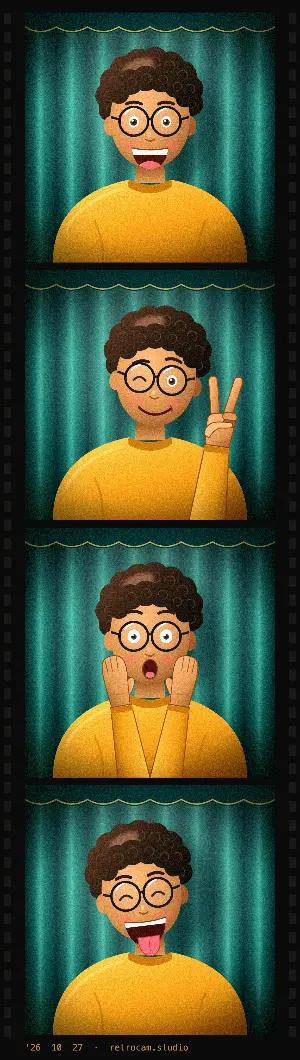
- Tell a tiny story: a serious face, a laugh, a pull-face, a hug. That is what made booth strips fun in the first place.
- Mixing photos from different phones or years? A grainy or black and white look hides the differences best. Try Disposable '98, Super 8 or HP5 B&W.
Photo strip sizes you can save
- Strip
- Each photo is 1080 × 1080 pixels. The whole classic strip comes out roughly 1,200 to 1,300 pixels wide and 4,550 to 4,700 tall, depending on the frame.
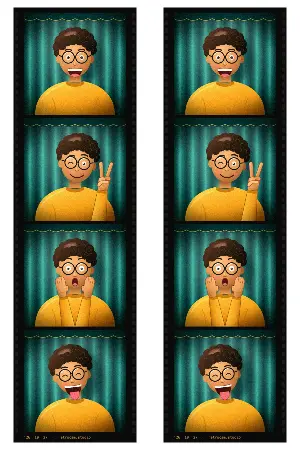
- A 4 × 6 inch sheet at 300 dpi (1200 × 1800 pixels) with two copies of the strip side by side. Cut along the dashed line and each half is 2 × 6 inches.
- Story
- 1080 × 1920 pixels, 9:16, for Instagram and TikTok stories.
- Square
- 1080 × 1080 pixels, with the photos as a 2 by 2 grid.
- GIF
- The frames as a short looping animation.
How to print photo strips
Make a Classic strip, then choose the Print format. You get one 4 × 6 inch image (about 10 × 15 cm) with two copies of your strip on it.
- At home, print it on 4 × 6 photo paper. If your printer offers to fit or fill the page, pick the option that keeps the image at its actual size.
- At a photo kiosk or an online print service, order it as a normal 4 × 6 print.
- Cut along the dashed line down the middle. Keep one strip and give the other away.
Questions
Is the photo strip maker free?
Yes. Every look, layout, frame and export is free, with no account. A small date stamp with retrocam.studio is on by default, and you can switch it off before you save.
Are my photos uploaded to a server?
No. The "upload" only opens the photos in your browser. Cropping, filters and the strip itself are all made on your device, and nothing is sent anywhere.
Can I make a horizontal photo strip?
Yes. Choose the Triptych layout in the booth settings. It puts three photos side by side in one row.
Can I make a black and white photo strip?
Yes. Pick HP5 B&W, Acros B&W or Noir before you add your photos. Black and white also hides color differences when the photos were taken in different light.
What happens if I pick fewer than four photos?
RetroCam repeats the photos you picked until every frame is filled. If you pick more than the layout holds, it uses the first ones and leaves the rest.
Making a strip with someone far away? See the long distance photo booth guide. Only want to filter one photo? Use the editor.